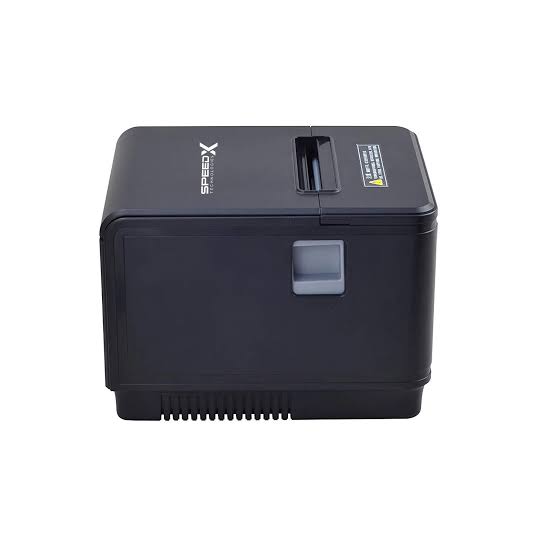
Thermal receipt printers are essential tools for businesses that handle frequent customer transactions. Retail stores, restaurants, supermarkets, pharmacies, and service counters depend on these devices to produce receipts quickly and maintain organized payment records. However, like other electronic equipment, thermal printers can experience operational problems that affect printing quality, speed, and reliability.
A Thermal Receipt Printer uses a heat-sensitive printhead to create text and graphics on specially coated paper. Although this technology has fewer consumable requirements than traditional ink-based printing, problems such as blank receipts, paper jams, faded text, and connection failures can still occur. Understanding their possible causes and troubleshooting methods helps businesses resolve common issues and minimize interruptions.
Why Thermal Receipt Printers Develop Problems
Thermal receipt printer problems can result from several factors, including incorrect paper installation, poor-quality supplies, accumulated dust, worn components, and software configuration errors.
Some issues are related to everyday handling, while others may indicate that a mechanical or electronic component needs attention.
Common causes include:
- Using incompatible or damaged thermal paper.
- Incorrect paper roll installation.
- Dust or residue on the printhead.
- Worn platen rollers or cutter components.
- Incorrect printer settings.
- Loose cables or unstable wireless connections.
- Outdated drivers or incompatible POS software.
- Excessive heat, moisture, or other unsuitable environmental conditions.
Identifying the underlying cause is more effective than repeatedly restarting the printer or changing settings without checking the equipment.
1. Printer Produces Blank Receipts
A blank receipt is one of the most common problems users encounter. The printer may feed paper normally, but no text or graphics appear on the output.
Possible Causes
- The thermal paper is installed in the wrong direction.
- The paper is not compatible with the printer.
- The printhead is dirty or damaged.
- The printer’s heating elements are not functioning correctly.
- Printing settings or software commands are incorrect.
Troubleshooting Steps
First, check the paper orientation. Thermal paper has a heat-sensitive side that must face the printhead. If the roll is installed incorrectly, the printer may feed paper without producing visible output.
Next, verify that the paper meets the printer’s specifications. If the orientation and paper type are correct, print a self-test if the model supports this function.
If the test also produces blank paper, the problem may involve the printhead or internal electronics. Consult the manufacturer’s instructions or contact a qualified technician.
2. Faded or Light Printing
Faded receipts can make transaction details difficult to read. This can create problems when customers need proof of purchase or employees must review printed records.
Possible Causes
- Low print darkness settings.
- Poor-quality thermal paper.
- Dirt or residue on the printhead.
- Excessive printhead wear.
- Incorrect temperature or speed configuration.
Troubleshooting Steps
Start by checking the printer’s darkness settings. Increase the setting gradually if the printed output is too light, while staying within the manufacturer’s recommended range.
Inspect the paper roll and replace it with compatible thermal paper if necessary.
If the problem continues, turn off the printer and clean the printhead using an approved cleaning method. Avoid sharp tools or abrasive materials that could damage the heating elements.
Persistent fading after cleaning may indicate printhead wear or another hardware problem.
3. Uneven Printing or Missing Lines
Sometimes receipts contain clear text in certain areas but show faint sections, missing vertical lines, or inconsistent darkness across the page.
Possible Causes
- Dust or adhesive residue on the printhead.
- Damaged heating elements.
- Uneven contact between the paper and printhead.
- Worn or contaminated platen roller.
- Poor-quality thermal paper.
Troubleshooting Steps
Turn off the printer and inspect the printhead for visible contamination. Clean it according to the manufacturer’s recommendations.
Also examine the platen roller for dirt, damage, or unusual wear. A roller that does not maintain proper contact can affect the consistency of printed output.
If the same lines remain missing after cleaning and testing with suitable paper, individual printhead elements may be damaged and require professional replacement.
4. Paper Jams During Printing
Paper jams can interrupt transactions and force employees to stop serving customers while they inspect the printer.
Possible Causes
- Incorrectly installed paper rolls.
- Wrinkled or damaged paper.
- Incorrect paper dimensions.
- Paper fragments inside the mechanism.
- Worn rollers or mechanical components.
Troubleshooting Steps
Switch off the printer before attempting to remove trapped paper. Open the cover according to the manufacturer’s instructions and carefully remove the jammed material.
Avoid pulling paper forcefully because this may damage the feed mechanism or cutter.
Check that the paper roll is correctly positioned and rotates freely. Remove visible debris using suitable cleaning materials.
If jams continue after correcting the paper installation, the roller, cutter, or internal feeding mechanism may require inspection.
5. Printer Does Not Feed Paper
A printer may power on and respond to commands but fail to move the paper through its mechanism.
Possible Causes
- Paper is not loaded correctly.
- The paper roll is obstructed.
- The feed button or software command is not working.
- The platen roller is worn or damaged.
- The paper-feed motor has developed a fault.
Troubleshooting Steps
Open the printer cover and check whether the paper roll is positioned correctly. Make sure the paper is not trapped beneath the roll or blocked by another object.
Try using the printer’s feed button, if available, to determine whether the mechanism responds independently of the connected POS system.
If the printer does not feed paper even during a self-test or manual feed operation, the problem may involve the motor or internal mechanical components.
6. Printer Fails to Connect With the POS System
Connection problems can prevent employees from printing receipts even when the printer itself appears to be working normally.
Possible Causes
- Loose or damaged USB cables.
- Incorrect network settings.
- Bluetooth pairing problems.
- Wi-Fi connection interruptions.
- Incorrect printer selection in the POS software.
- Missing or incompatible drivers.
Troubleshooting Steps
Check the physical connections first. Ensure that the USB or Ethernet cable is securely connected and inspect it for visible damage.
For wireless printers, confirm that Bluetooth pairing or Wi-Fi network settings are correct.
Next, check the POS software to ensure that the intended printer is selected. If necessary, restart the connected device and reinstall the correct printer driver.
For network-based systems, verify that the printer and POS terminal can communicate through the configured network.
7. Printer Is Not Recognized by the Computer
Sometimes a computer or POS terminal does not detect the connected printer. This can occur after software updates, system changes, or driver installation problems.
Possible Causes
- Missing printer drivers.
- Incorrect USB port selection.
- Operating system compatibility issues.
- Damaged communication cables.
- Incorrect printer configuration.
Troubleshooting Steps
Confirm that the printer is powered on and properly connected. Try another compatible USB port or cable to rule out a connection problem.
Check the operating system’s printer settings and confirm whether the device appears in the installed printer list.
If it is missing, install the driver designed for the specific printer model and operating system. Avoid using unrelated drivers because they may cause communication or printing errors.
8. Printer Produces Distorted or Incorrect Characters
Receipts may occasionally contain unusual symbols, incorrect characters, overlapping text, or incomplete information.
Possible Causes
- Incorrect character encoding.
- Unsupported command language.
- Incompatible printer drivers.
- Incorrect POS software configuration.
- Corrupted print data.
Troubleshooting Steps
Check whether the POS system uses a character set supported by the printer. This is particularly important for businesses printing multiple languages or special symbols.
Verify that the correct driver and communication settings are installed.
If the problem occurs only in one application, test printing from another compatible program. This can help determine whether the issue is related to the printer or the software sending the print commands.
9. Automatic Cutter Does Not Work Properly
Many receipt printers include an automatic cutter that separates printed receipts after each transaction. A cutter problem can leave receipts partially attached or prevent paper from being separated.
Possible Causes
- Paper fragments around the cutter.
- Accumulated dust or residue.
- Worn or damaged cutting blades.
- Incorrect cutter settings.
- Mechanical obstruction.
Troubleshooting Steps
Turn off the printer before inspecting the cutter area. Remove visible paper fragments according to the manufacturer’s instructions.
Check the software settings to confirm that automatic cutting is enabled when required.
Do not use sharp tools or force the cutter mechanism manually. If the cutter remains stuck or produces incomplete cuts, professional servicing may be necessary.
10. Printer Overheats or Stops During Heavy Use
Thermal receipt printers generate heat during operation because their printheads use heating elements to produce images. Under heavy workloads, some models may pause or reduce their operating speed to protect internal components.
Possible Causes
- Continuous high-volume printing.
- Inadequate ventilation.
- Excessive darkness settings.
- Unsuitable operating conditions.
- Internal component problems.
Troubleshooting Steps
Allow the printer to cool if it becomes unusually hot or displays an overheating warning.
Check that ventilation openings are not blocked and that the device is operating within the manufacturer’s recommended environmental range.
Review print darkness settings and avoid unnecessarily high heat levels.
If overheating occurs frequently under normal operating conditions, consult technical support to determine whether the equipment is suitable for the workload.
11. Printer Makes Unusual Noise
Unusual clicking, grinding, or rattling sounds may indicate a mechanical problem.
Possible Causes
- Paper fragments inside the printer.
- Misaligned paper rolls.
- Worn gears or rollers.
- Cutter obstruction.
- Damaged feed mechanism.
Troubleshooting Steps
Turn off the printer and inspect the paper compartment for visible debris or incorrectly positioned paper.
Check whether the paper roll rotates freely and whether the printer cover closes properly.
If the noise continues after removing visible obstructions, avoid repeatedly operating the equipment. A technician should inspect the internal mechanism to prevent further damage.
12. Printer Frequently Disconnects or Stops Responding
Intermittent communication problems can be particularly disruptive in businesses that process continuous transactions.
Possible Causes
- Unstable wireless signals.
- Network interruptions.
- Damaged cables or connectors.
- Power supply problems.
- Software conflicts.
- Incorrect network configuration.
Troubleshooting Steps
For wired connections, inspect cables and connectors. Replace damaged cables with compatible alternatives.
For wireless connections, check signal strength and confirm that the printer remains connected to the intended network.
Restart the printer and connected POS device if communication does not recover. If the issue continues, review network settings and software logs where available.
Common Thermal Receipt Printer Problems at a Glance
The following table summarizes frequent problems and the first troubleshooting action to consider.
| Problem | Likely Cause | First Action |
|---|---|---|
| Blank receipts | Incorrect paper orientation | Reinstall the paper roll |
| Faded printing | Low darkness or dirty printhead | Check settings and clean the printhead |
| Missing lines | Printhead contamination or damage | Inspect and clean the printhead |
| Paper jams | Incorrect loading or obstruction | Remove trapped paper carefully |
| No paper feeding | Feed mechanism problem | Check roll placement and test the feed button |
| Connection failure | Cable or network issue | Inspect connections and settings |
| Incorrect characters | Driver or encoding problem | Check software configuration |
| Cutter malfunction | Debris or mechanical wear | Inspect the cutter safely |
| Overheating | Heavy use or poor ventilation | Allow cooling and check airflow |
| Unusual noise | Mechanical obstruction or wear | Stop operation and inspect the paper path |
Preventive Maintenance to Avoid Recurring Problems
Troubleshooting helps resolve existing faults, but preventive maintenance can reduce the likelihood of repeated failures.
Businesses should establish a simple maintenance routine that includes:
Clean the Printhead and Paper Path
Remove dust and paper residue using manufacturer-approved cleaning materials. Regular cleaning helps maintain consistent printing and prevents contamination from accumulating.
Use Compatible Thermal Paper
Select paper that meets the printer’s recommended width, thickness, and coating specifications. Poor-quality paper can affect output and contribute to residue buildup.
Inspect Rollers and Cutter Components
Check the platen roller and automatic cutter for visible wear or damage. Replace components when necessary rather than continuing to use equipment that produces inconsistent results.
Maintain Suitable Operating Conditions
Keep printers away from excessive heat, moisture, direct sunlight, and heavy dust. Proper placement can help protect electronic and mechanical components.
Update Drivers and Software
Use compatible drivers and follow manufacturer recommendations for firmware updates. Correct software configuration helps maintain communication between the printer and POS system.
Train Employees
Teach staff how to load paper, remove basic obstructions safely, recognize common warning signs, and report recurring faults.
When Should Businesses Contact a Professional Technician?
Some printer problems can be resolved through basic troubleshooting, but others require technical expertise.
Professional assistance is recommended when:
- The printhead continues producing missing lines after cleaning.
- The printer repeatedly overheats during normal operation.
- Internal gears or motors make persistent unusual noises.
- The automatic cutter remains stuck.
- The device fails to power on despite using a compatible power supply.
- Communication problems continue after checking cables and software.
- Internal components appear damaged.
Businesses should avoid dismantling electronic parts without proper training. Unauthorized repairs may create additional damage or affect warranty coverage.
How to Reduce Downtime in High-Volume Printing Environments
For supermarkets, restaurants, and other busy businesses, even a short printer interruption can affect customer service.
A few practical measures can help minimize disruption:
- Keep spare compatible thermal paper rolls near checkout stations.
- Maintain a backup printer where continuous receipt printing is essential.
- Test printers before expected peak transaction periods.
- Record recurring errors and maintenance activities.
- Train employees to handle basic problems safely.
- Arrange timely servicing when repeated faults occur.
These measures help businesses respond more quickly when equipment problems arise.
Conclusion
Common thermal receipt printer problems include blank receipts, faded output, paper jams, feeding failures, connection issues, cutter malfunctions, and unusual mechanical noises. Many of these issues can be resolved by checking paper orientation, cleaning printer components, reviewing software settings, and inspecting connections.
However, recurring faults may indicate worn or damaged internal components that require professional attention. By combining basic troubleshooting with preventive maintenance and proper employee training, businesses can reduce printing interruptions and maintain reliable transaction operations. A consistent approach to printer care helps preserve print quality, protect equipment, and support efficient customer service.